How to Choose a Mechanical Keyboard: A Complete Step-by-Step Guide
By Jota Martínez • • Mechanical Keyboards Guide

You're about to buy something you'll use for 8 hours a day, every day. A keyboard that's wrong for your hands — the wrong switches, the wrong size, the wrong connectivity — won't just be annoying. It'll be an active source of friction every time you sit down to work or play.
The good news: picking the right mechanical keyboard is genuinely systematic. There are six decisions to make, in a specific order. Get the sequence right and the answer becomes obvious. Skip the sequence and you end up with clicky switches in an open-plan office or a 60% layout that's missing the arrow keys you use constantly.
This guide walks through all six steps, gives you the exact questions to ask at each one, and closes with curated picks for the most common user profiles. By the end, you won't just know more — you'll know exactly what to buy.
Watch first: Quick overview
Step 1: Define Your Primary Use Case
Your use case is the single most important input. It determines which switches feel right, which layouts make sense, and how much you should spend. Answer this question honestly before everything else: what is this keyboard for, most of the time?
Step 2: Set a Realistic Budget
Mechanical keyboard pricing is not random. Each price tier has real, meaningful differences in build quality, switch quality, acoustic profile, and firmware capabilities. Here's what you actually get at each level:
| Budget | Tier | What you get |
|---|---|---|
| $40–65 | Entry-level | Functional but compromised. Plastic cases, average switches, limited or no firmware customization. Boards like the Royal Kludge RK84 and Redragon K552 live here. The RK84 is a genuine outlier — it offers hot-swap and tri-mode wireless at this price — but most boards at this tier cut corners on switch quality and build consistency. Good as a trial run if you've never used a mechanical keyboard. |
| $65–100 | Mid-budget sweet spot | This is where the biggest quality jump happens. Boards like the Keychron K2 V2 ($89) and Akko 3068B Plus ($65) offer aluminum frame options, Gateron switches, Bluetooth 5.1 multi-device, and hot-swap PCBs. For most buyers, this tier is the right destination for a first serious mechanical keyboard. |
| $100–160 | Enthusiast entry | Build quality improves noticeably. The NuPhy Air75 V2 ($105), Keychron K series with aluminum frames, and similar boards offer thick PBT keycaps, polished typing sounds, and solid wireless implementations. This is also where pre-lubed switches start to appear. |
| $160–250 | Enthusiast / premium | Gasket mounting, QMK/VIA full firmware support, premium plate materials. The Keychron Q series ($170–200) is the dominant option in this range. At this tier you're buying a board you'll still be using in five years. |
| $250+ | Custom / heirloom | The HHKB Professional Hybrid, Leopold FC750R, and custom builds enter here. The HHKB's Topre electrostatic capacitive switches are genuinely unlike anything else — a bucket-list experience for enthusiasts. Above $250, improvements become increasingly personal and subjective. |
Step 3: Pick Your Layout — Before Anything Else
Layout is the decision most people underestimate. If you pick the wrong layout, no amount of great switches or premium build quality will make the keyboard feel right. And unlike switches — which you can swap on a hot-swap board — the layout is fixed.
The question isn't "which layout looks coolest". It's: which keys do you actually use every day? Here's the honest breakdown:
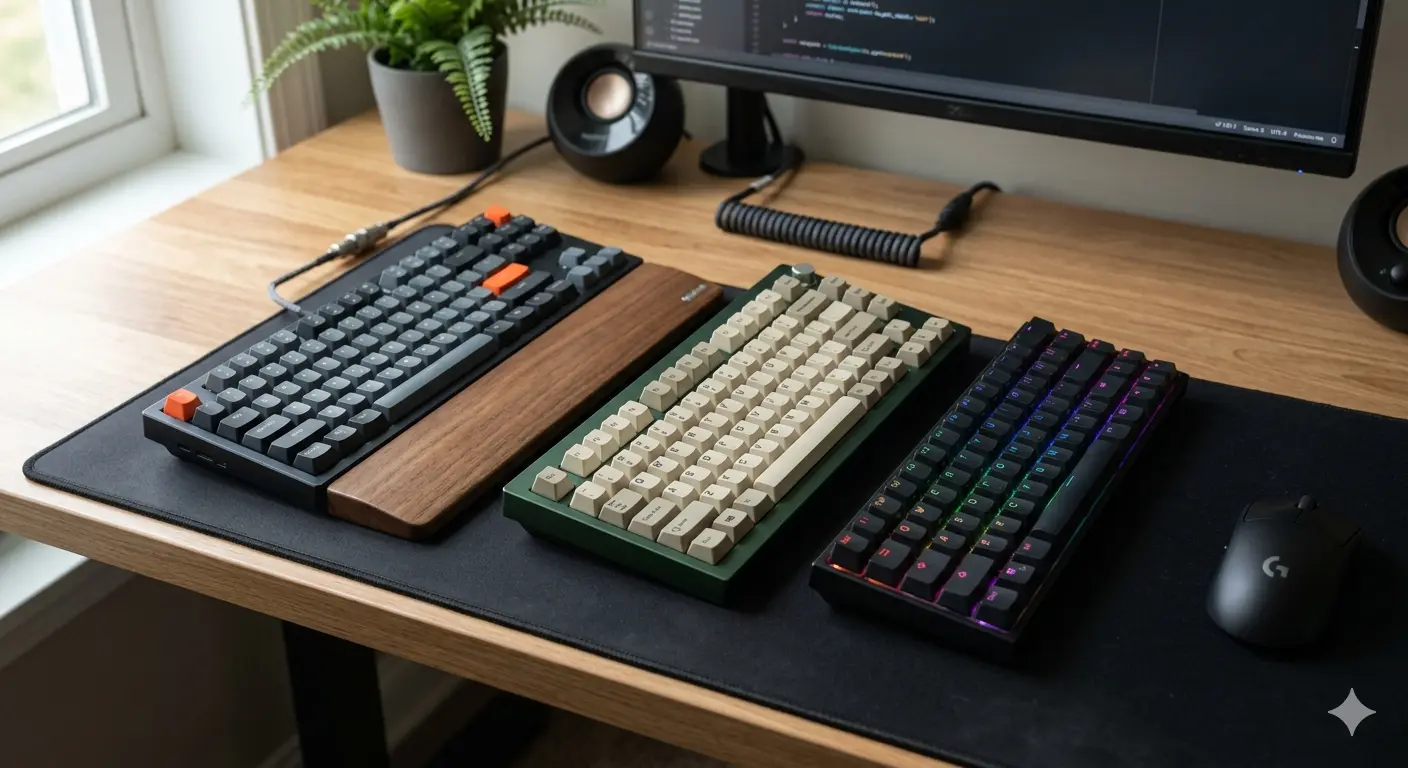
Layout size comparison — left to right: 60%, 65%, 75%, TKL, Full-Size.
| 100% Full-Size | Keep the numpad if you enter numbers daily — accountants, data analysts, spreadsheet-heavy roles. Otherwise, you're giving up ~80mm of desk space and pushing your mouse arm further right for nothing. Most people who buy a full-size do not use the numpad as often as they think they will. |
| TKL (87%) — The safe default | Everything a full-size has except the numpad. Keeps the full function row, dedicated navigation cluster, and arrow keys. The most recommended starting point for anyone who wants a "normal" keyboard that's just smaller. 80% of users who aren't sure should start here. |
| 75% — The enthusiast sweet spot | Slightly more compact than TKL: the navigation keys compress into a single column on the right. Still keeps the F-row. If you're desk-space-conscious but can't imagine losing function keys, the 75% is the answer in 2026. |
| 65% — Compact, practical | Loses the function row, keeps arrow keys. The right call if you've honestly checked and your F-keys are rarely used (most people use F5 for refresh, F12 for DevTools, and nothing else). You'll learn the Fn layer for the rest in a week. |
| 60% — Minimalist, committed | Arrow keys and function row exist only as key combinations. A clean, beautiful layout — but not right for everyone. If you're buying your first mechanical keyboard, start with TKL or 75%. Come back to 60% once you know which keys you actually use. |
Step 4: Choose Your Switches
By now you know your use case, budget, and layout. Switch selection flows naturally from the use case decision. Here's the practical map:
| Use case | Recommended switch | Why |
|---|---|---|
| Competitive gaming | Linear: Gateron Yellow / Cherry MX Red | Smooth, no bump, consistent rapid actuation |
| Heavy typing / writing | Tactile: Boba U4 / Holy Panda X | Clear bump = less bottoming out, less fatigue |
| Open office (shared) | Silent: Boba U4 (tactile) or Gateron G Pro Silent (linear) | Genuinely quieter than membrane |
| Programming | Tactile or linear — personal preference | Use case matters less; QMK support matters more |
| Casual / first keyboard | Hot-swap board + switch sampler | Try before committing to a full set |
Still deciding? Watch this
Two things worth knowing that the table above doesn't capture: first, "Cherry MX Brown" appears on almost every beginner list but enthusiasts consistently rate it as the least impressive tactile switch available — the bump is barely perceptible. Third-party tactiles (Boba U4, Gateron Brown Pro) are better at the same price. Second, if you're buying a hot-swap board (recommended), you don't need to get the switches exactly right on the first try. Buy a switch tester, try 5–6 types, decide later.
Step 5: Wired or Wireless?
In 2026 this is a simpler decision than it used to be. Wireless mechanical keyboards have caught up in almost every measurable way — the gap in latency, battery life, and price has narrowed significantly.
The decision tree is straightforward: If you play competitive FPS games and every millisecond counts, get a board with 2.4 GHz dongle mode (sub-1ms latency) — not just Bluetooth. Most Keychron K and Q series boards with wireless support both modes. If you work across multiple devices — switching between a Mac, a work PC, and sometimes a tablet — Bluetooth 5.1 multi-device pairing is genuinely useful. One keyboard, three devices, instant switching. If you're primarily at a fixed desk and don't need the flexibility, wired saves money and eliminates the battery variable entirely.
One thing to avoid: don't buy a "wireless" keyboard that only supports Bluetooth 3.0. Modern Bluetooth 5.1 is fast and stable; older versions have legitimately noticeable lag. Check the spec sheet.
Step 6: Features Worth Paying For (and Those That Aren't)
Once you've settled on the first five decisions, this final layer separates good keyboards from great ones. Three features are worth paying a premium for; one common feature is mostly hype.
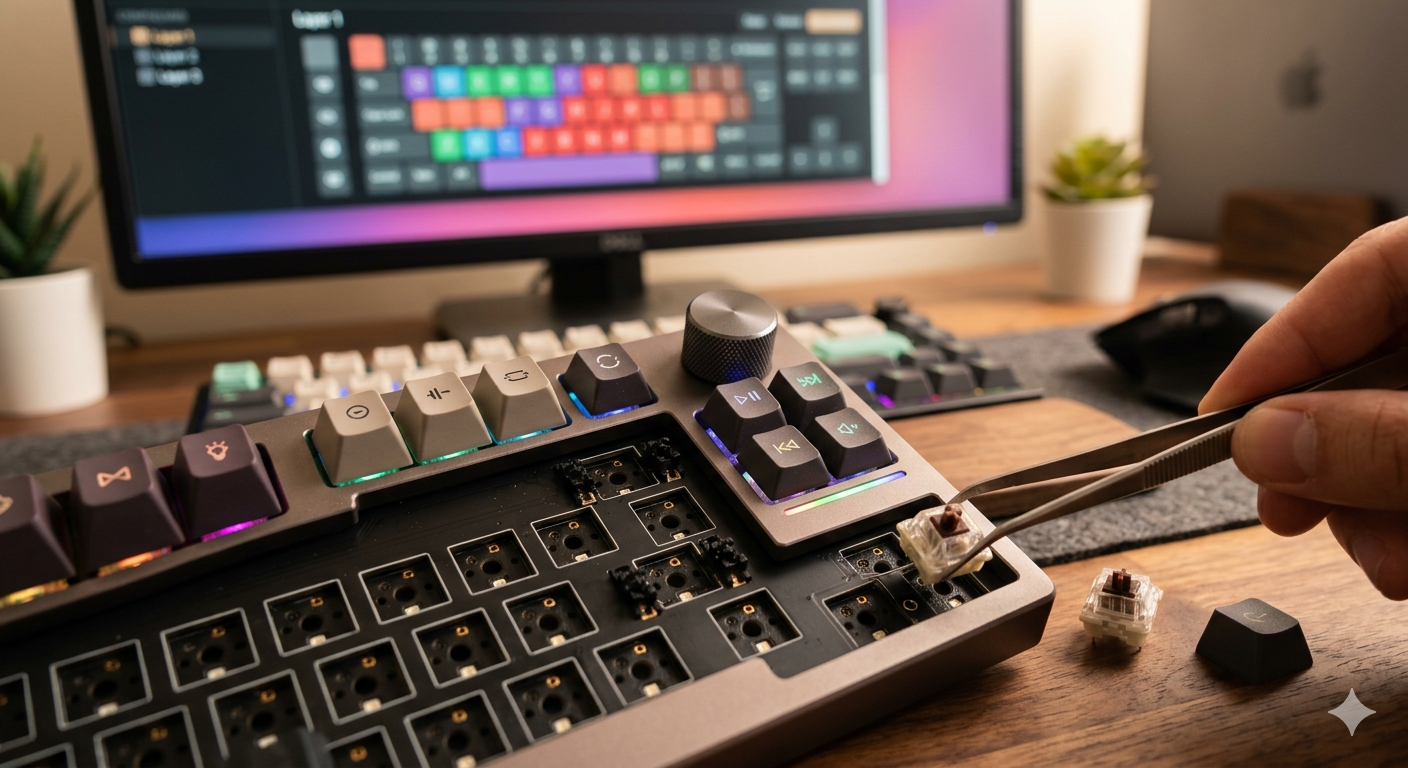
Key features to look for: hot-swap socket, QMK support and media controls.
| Hot-Swap PCB — Strongly Recommended | A hot-swap PCB lets you pull out switches with a small puller tool and snap in new ones, without soldering. For anyone exploring the hobby, this is invaluable — you can buy a $15 switch tester, find the switches you like, and install them in 20 minutes. Almost all Keychron boards now offer hot-swap. There's no meaningful downside. Get it. |
| QMK / VIA Firmware — Worth It for Power Users | QMK is open-source keyboard firmware that lets you remap every key, create multiple layers, set up macros, change RGB behavior, and tune timing — all through a free web editor (VIA). If you use custom key combos, write code, or want OS-specific profiles, QMK is essential. For casual users who just want to type, it's a nice-to-have. |
| RGB Backlighting — Nice-to-Have, Not a Priority | RGB looks great on product pages and YouTube videos. In daily use, most people set it to a single static color or turn it off. RGB adds cost, drains battery on wireless boards, and adds complexity to firmware. Don't pay a premium for RGB at the expense of better switches or build quality. |
| Volume Knob / Media Controls — Underrated | A volume knob or dedicated media keys are quietly one of the most appreciated features in daily use. The Keychron Q2 and various 75% boards have started including them. If you adjust volume frequently, this is more valuable than RGB. |
Our Picks by User Profile
Put it all together. Here are our specific recommendations for the most common buyer profiles in 2026:
Profile
?? Competitive Gamer
Wooting 60HE+ (~$175) or RK84 (budget)
Hall Effect switches with adjustable actuation. Sub-1ms 2.4 GHz. 65% for mouse space.
Profile
?? Writer / Daily Typist
Keychron K2 V2 (~$89) with Gateron Brown
75% layout, hot-swap, tactile switches, aluminum frame, excellent battery.
Profile
?? Office / Shared Space
Keychron K2 V2 with Gateron G Pro Silent
Swap to silent linears. Multi-device BT 5.1. Quiet enough for any open office.
Profile
?? Developer / Programmer
Keychron Q2 Pro (~$170) — QMK + gasket
Full QMK/VIA remapping, south-facing RGB, gasket-mounted for all-day typing.
Profile
Mac User
Keychron K2 V2 or NuPhy Air75 V2 (~$105)
Both ship with Mac layout, macOS mode, USB-C. The NuPhy adds low-profile switches.
Profile
?? First Keyboard / Undecided
Keychron K2 V2 + Gateron switch sampler
Hot-swap + sampler = try any switch type. Return to any of the profiles above once you know what you like.
Productivity & office picks video
Want to go deeper on any part of this decision? Our Complete Mechanical Keyboards Guide covers every topic in detail � switches, anatomy, modding and more. Once you've decided on a board, the Best Mechanical Keyboards 2026 list shows our hands-on tested picks ranked by category.
Frequently Asked Questions
Ready to See the Top Picks?
We've tested and reviewed keyboards across every profile in this guide. See our full ranked list of the best mechanical keyboards in 2026 — sorted by use case, budget, and layout.
See the full top-10 list ?By Jota Martínez • Published June 14, 2026 • See: Keychron K2 V2 review ?
Related Articles

Best Silent Mechanical Keyboard for Office 2026: 7 Quiet Picks
Looking for the best silent mechanical keyboard for office use? We tested 7 quiet mechanical keyboards with silent switches — from $59 budget picks to $199 premium boards. Perfect for shared offices and WFH setups.
Best 65% Mechanical Keyboards 2026: Top 7 Picks
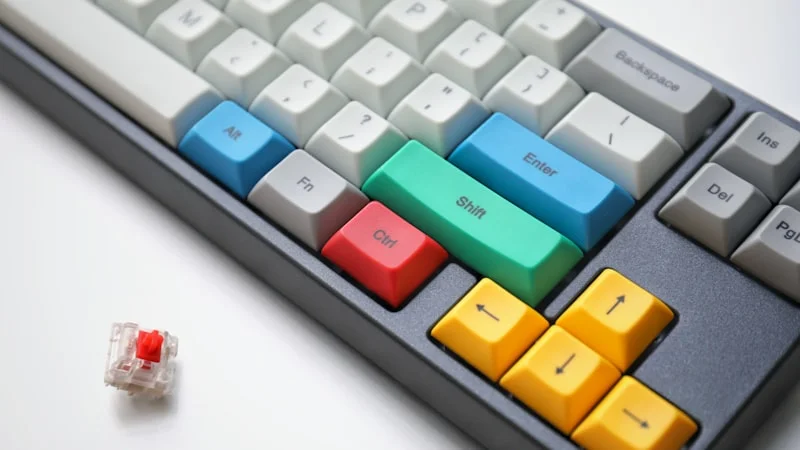
The 7 best 65% mechanical keyboards of 2026, hands-on tested. From budget picks under $50 to premium wireless — find your perfect compact keyboard.
Best 75% Mechanical Keyboards 2026: Top 7 Picks
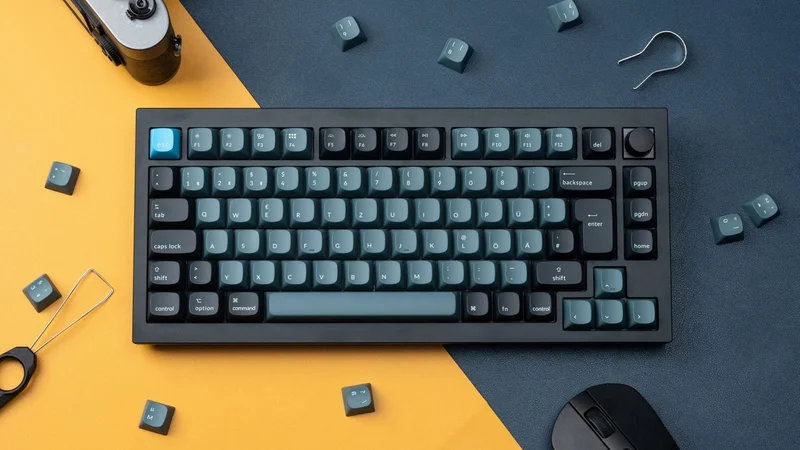
The 7 best 75% mechanical keyboards of 2026, hands-on tested. From budget picks under $60 to premium wireless — find your perfect compact keyboard.