The Complete Guide to Mechanical Keyboards 2026
By Jota Martínez •
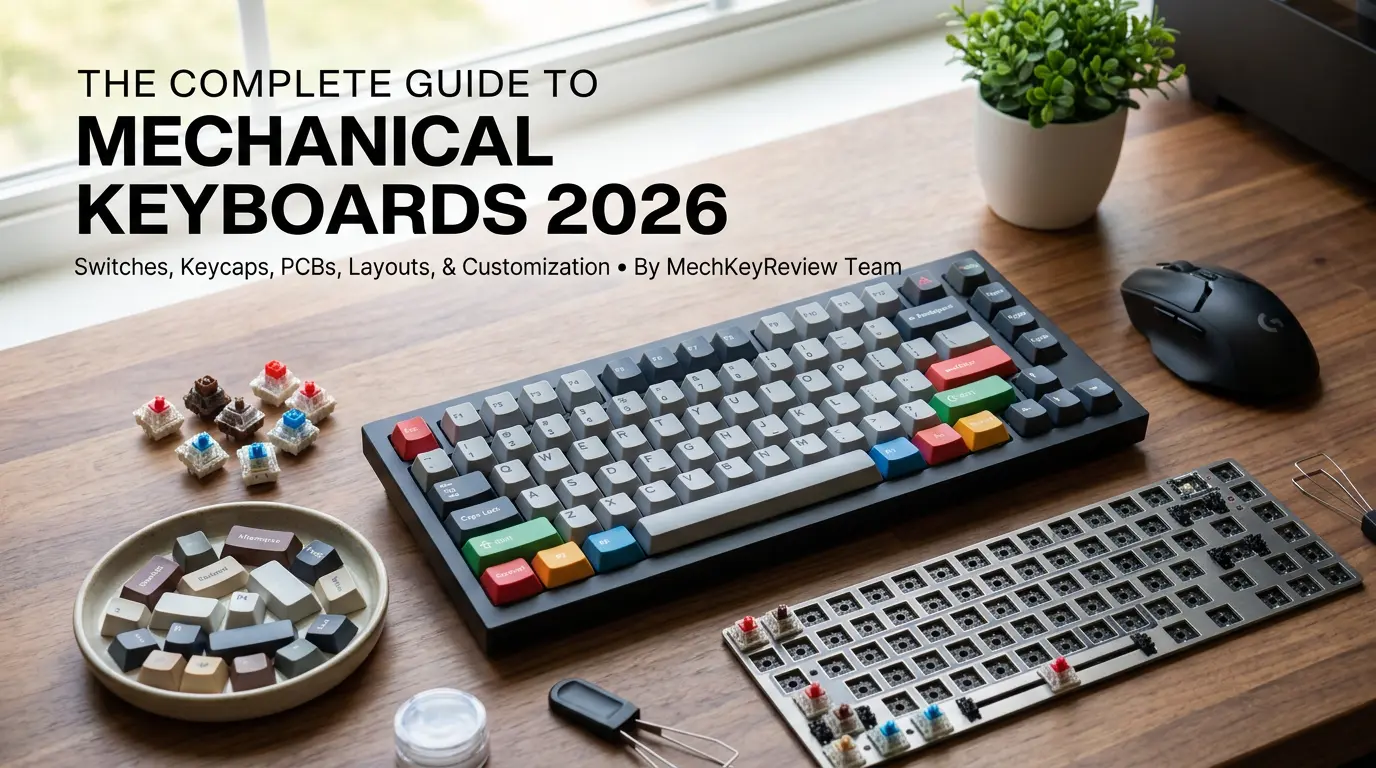
If you've ever typed on a cheap membrane keyboard and wondered why every keystroke feels mushy and imprecise, you've already understood the problem mechanical keyboards exist to solve — and once you make the switch, you rarely go back.
But here's the challenge: the mechanical keyboard world is vast. There are hundreds of models, dozens of switch types, five common layouts, price ranges from $40 to $800, and enough terminology to fill a small dictionary. If you're new to the hobby, it's easy to spend hours researching and end up more confused than when you started.
This guide cuts through that noise. Over the next 4,000+ words, we cover everything you need to know: what mechanical keyboards actually are, how they work internally, what the different switch types feel like in practice, which layouts suit different use cases, how to budget smartly, and exactly which keyboards we recommend in 2026 across every category. By the end, you'll know exactly what to buy — or whether to dive into a custom build.
In this guide:
- What Is a Mechanical Keyboard?
- Inside a Mechanical Keyboard: Anatomy
- Types of Mechanical Keyboard Switches
- Keyboard Layouts & Form Factors
- How to Choose the Right Mechanical Keyboard
- Best Mechanical Keyboards by Category (2026)
- Wired vs Wireless Mechanical Keyboards
- Keycaps: ABS, PBT, Profiles & Customization
- Customization & Modding
- Frequently Asked Questions
What Is a Mechanical Keyboard?
A mechanical keyboard is a keyboard that uses individual, dedicated mechanical switches beneath each keycap. This is in direct contrast to membrane keyboards — the standard in most offices and homes — where a single rubber dome sheet sits under the keys and a shared circuit layer registers all keypresses.
Each switch in a mechanical keyboard is an independent mechanism. It contains a stem, one or two springs, a housing, and metal contact legs. When you press a key, the stem travels downward and closes an electrical contact, sending a signal to your computer. When you release, a spring forces the stem back to its resting position, ready for the next press. This design has four major advantages over membrane alternatives:
The trade-off is cost. A decent mechanical keyboard starts around $50–70, while a functional membrane keyboard costs $10–15. For casual users who barely type, the upgrade may not matter. For anyone who spends significant time at a keyboard — developers, writers, gamers, data analysts — the investment pays dividends quickly.
Inside a Mechanical Keyboard: Anatomy
To make smart buying decisions, it helps to understand what's actually inside your keyboard. A mechanical keyboard has five main components, and each one meaningfully affects how the keyboard sounds, feels, and performs.
| The Switch | The switch is the heart of the keyboard. It sits beneath each keycap and registers every keystroke. A switch consists of: a top housing (clear or opaque plastic that holds the LED if present), a bottom housing (anchors to the PCB), a stem (the moving part that your keycap attaches to), a spring (determines actuation force), and two metal contact legs (complete the circuit when pressed). The switch type determines the feel, sound, and actuation characteristics of your entire keyboard. |
| The PCB (Printed Circuit Board) | The PCB is the keyboard's brain. It receives electrical signals from switches and translates them into keystrokes your computer understands. Modern PCBs typically support NKRO (n-key rollover), meaning every simultaneous keystroke is registered independently with no conflicts. Some PCBs support QMK/VIA firmware, enabling full key remapping, macros, and layer programming. |
| The Plate | The plate sits between the PCB and the switches, holding them in place and adding rigidity to the typing surface. Plate material significantly affects sound and feel: aluminum plates create a stiff, slightly clacky sound; polycarbonate plates flex slightly and produce a lower-pitched sound; brass is very stiff with a sharp, high-pitched sound; steel is similar to aluminum but heavier. |
| The Case | The outer shell that houses all the components. Case material affects sound resonance and build quality. Plastic cases are lighter and cheaper but may resonate more. Aluminum cases feel premium, dampen sound, and add significant weight. Polycarbonate cases produce unique acoustics. The way the plate and PCB mount to the case (tray mount, top mount, gasket mount) also changes the typing feel dramatically — gasket mounting creates a "bouncy" feel that is prized by enthusiasts. |
| Keycaps | The plastic caps that attach to switch stems. Keycaps can be swapped on virtually every mechanical keyboard without tools. They come in different materials (ABS or PBT), different heights and shapes (profiles), and with legends printed using different methods (pad-printed, laser-etched, double-shot, dye-sublimated). We cover keycaps in detail in a dedicated section below. |
Types of Mechanical Keyboard Switches
The switch is the most important component of any mechanical keyboard. Choosing the wrong switch type can make an expensive board feel frustrating. All mechanical switches fall into one of three families based on their tactile feedback and sound. Understanding the families takes five minutes and saves you from buyer's remorse.
Linear switches travel straight down with no tactile bump or audible click. The resistance increases gradually and uniformly as you press deeper. The keystroke is smooth from top to bottom.
Linear switches are the first choice for gamers because there's no tactile interruption during rapid keypresses — you get direct, predictable input. They're also popular for office use because they tend to be quieter than clicky switches (though not silent — bottoming out on the PCB still creates sound).
Popular linear switches: Cherry MX Red (45g actuation, industry standard), Gateron Yellow (35g, ultra-smooth, excellent value), Akko CS Matcha Green (45g, great factory feel), Gateron G Pro Red (45g, suitable for gaming boards).
Best for: Gamers, users who prefer smooth keystrokes, high-speed typists.
Tactile switches produce a noticeable bump at the actuation point — the exact moment the keystroke is registered. You feel the bump before the switch bottoms out. This tactile feedback tells your fingers when a keystroke has been counted, allowing trained typists to avoid pressing all the way down on every key.
This reduces finger fatigue significantly over long typing sessions. Tactile switches are the preferred choice for writers, programmers, and anyone who values confirmation of each keystroke without the noise of a clicky switch.
Popular tactile switches: Cherry MX Brown (45g, gentle bump — the most common beginner pick), Gateron Brown (45g, slightly smoother than Cherry), Boba U4 (62g, silent tactile, excellent for offices), Holy Panda X (67g, very sharp tactile bump, audiophile pick), Topre (capacitive tactile with rubber dome — a unique feel beloved by enthusiasts).
Best for: Writers, programmers, typists who want keystroke confirmation without noise.
Clicky switches combine the tactile bump with an audible click. Each keystroke produces a sharp, crisp click sound at the actuation point. They provide the strongest and most satisfying feedback of the three types.
Clicky switches are divisive. Enthusiasts love the crisp feedback and satisfying sound. Office coworkers typically do not. If you work from home, in a private space, or with understanding colleagues, clicky switches are a joy. In an open-plan office, they will generate complaints.
Popular clicky switches: Cherry MX Blue (50g, the iconic click — widely available), Kailh Box White (45g, crisp click with waterproof housing, excellent value), Cherry MX Green (80g, heavier version of Blue for users who prefer more resistance).
Best for: Home office users, touch typists who love auditory feedback, typists who prefer strong confirmation per keystroke.
Switch Brand Overview
Not all switches with the same name feel the same. Switch quality, smoothness, and sound vary significantly by manufacturer:
| Cherry | Cherry (Germany): The original mechanical keyboard switches, in continuous production since the 1980s. Widely available in virtually every mechanical keyboard at every price point. Consistent quality, widely documented. Many enthusiasts now consider them overpriced compared to newer alternatives, but their reliability and compatibility are unmatched. |
| Gateron | Gateron (China): The go-to alternative to Cherry. Gateron Yellows are famously smooth — smoother than Cherry MX Reds out of the box — and come at a fraction of the price. Gateron switches are used in the majority of mainstream mechanical keyboards today, from budget Keychrons to mid-range custom builds. |
| Kailh | Kailh (China): Strong lineup of unique switch designs. Their Box switches have a square stem that provides waterproofing and better wobble resistance. Speed switches feature a shorter pre-travel for faster actuation. Popular in gaming boards from Razer (Razer Yellow/Green/Orange are Kailh derivatives). |
| Akko | Akko (China): Budget-to-mid-range brand producing well-lubed, smooth switches at competitive prices. The CS Jelly Pink and Matcha Green are surprisingly good at their price point. Akko's own keyboards come with these switches at an excellent value-for-money ratio. |
Keyboard Layouts & Form Factors
Layout refers to which keys the keyboard includes. This decision affects your desk space, workflow, and posture. The most common mistake beginners make is buying a full-size keyboard when they never use the numpad — then wondering why their mouse arm aches after long sessions. Choose your layout based on what you actually use.
| Layout | Keys | Width | Numpad | F-Keys | Arrows |
|---|---|---|---|---|---|
| 100% Full-Size | ~104 | 440 mm | ? | ? | ? |
| 87% TKL | ~87 | 358 mm | ? | ? | ? |
| 75% | ~84 | 320 mm | ? | ? | ? |
| 65% | ~68 | 290 mm | ? | ? | ? |
| 60% | ~61 | 230 mm | ? | Layer | Layer |
Full-Size (100%)
The classic layout includes everything: the main alphanumeric block, function row (F1–F12), navigation cluster (arrows, Insert, Home, PgUp, PgDn, End, Delete), and the numeric keypad. At about 440mm wide, it's the largest layout. The numpad is essential for data entry and accounting. For everyone else, it pushes the mouse further right and strains the shoulder over time.
Tenkeyless / TKL (87%)
TKL removes the numpad but keeps all other keys: function row, navigation cluster, and arrow keys. The most popular mainstream layout for good reason — it cuts width by ~80mm, bringing your mouse arm inward without sacrificing any commonly-used keys. The Keychron K8 Pro, Leopold FC750R, and Ducky One 3 TKL are excellent examples. It's the safest choice if you're unsure which layout to buy.
75% Layout
75% keyboards compress the navigation cluster into a single vertical column on the right side, eliminating the gap between the main keys and the navigation/arrow section. They retain dedicated function keys. The result is a board that's roughly 320mm wide — significantly smaller than TKL, but fully functional for most workflows. This is the most popular enthusiast layout in 2026. The Keychron K2 V2, NuPhy Air75 V2, and Keychron Q2 Pro are standout options.
65% Layout
65% keyboards remove the function row entirely (F1–F12) but keep arrow keys and a minimal navigation cluster (typically Del, PgUp, PgDn). They're about 290mm wide. These functions exist on an Fn layer if needed. If you rarely use dedicated function keys but can't live without arrow keys, the 65% is the sweet spot of compactness. The Keychron K6 and Ducky One 3 SF are popular picks.
60% Layout
60% keyboards include only the alphanumeric block and modifiers — no function row, no arrow keys, no navigation cluster. Everything else lives on secondary layers accessed via the Fn key. At ~230mm wide, they're the most compact mainstream option. They look striking and save maximum desk space, but the learning curve is steep. Recommended only for users who know they're comfortable with layer-based navigation. Popular options: Ducky One 2 Mini, Anne Pro 2, Keychron K6 Pro (closer to 65%).
How to Choose the Right Mechanical Keyboard
Now that you understand the components, let's build a buying framework. Answer these five questions in order and you'll arrive at the right keyboard.
1. Define Your Primary Use Case
How you use your keyboard should drive every other decision. Gaming prioritizes low latency, fast actuation, and often wireless 2.4GHz. Typing and writing prioritize tactile feedback, comfortable layouts, and build quality for long daily use. Programming benefits from compact layouts (65–75%) with excellent keymapping and layer support. Office use prioritizes silence — silent linear or tactile switches, conventional layouts, and clean aesthetics.
2. Set a Realistic Budget
Budget $40–60: Functional but compromised switches, plastic cases, limited firmware support (RK, Redragon). Budget $60–100: Strong value — Akko, Keychron C-series, hot-swap options. Budget $100–150: Sweet spot for most buyers — Keychron K-series, NuPhy Air75. Aluminum frames, good switches, Bluetooth 5.1. Budget $150–250: Enthusiast tier — Keychron Q-series, Mode boards. Gasket mounting, QMK/VIA, premium acoustics. Budget $250+: Diminishing returns unless you know exactly what you want.
3. Pick Your Layout
Use the numpad daily? Consider TKL + external numpad or a 75% with numpad. Want function keys and compact size? 75% is ideal. Comfortable with Fn layers? 65% or 60%. If in doubt, 75% is the safest starting point for most users.
4. Choose Your Switch Type
Fast gaming or smooth typing preference? Linear (Red/Yellow). Want to feel each keystroke? Tactile (Brown/Boba U4/Holy Panda). Want the full sound-and-feel experience and work alone? Clicky (Blue/Box White). In a shared office? Silent switches (Boba U4 silent tactile, Gateron G Pro Silent linear). First keyboard with plans to experiment? Hot-swap board + multiple switch samples.
5. Consider Extra Features
Hot-swap PCB: Strongly recommended for first-time buyers. Lets you swap switches without soldering — essential for exploring the hobby. QMK/VIA support: Open-source firmware for full remapping. Worth having if you want macro keys, custom layers, or OS-specific profiles. Wireless: 2.4GHz for gaming (sub-1ms latency), Bluetooth 5.1 for office multi-device switching. RGB: Nice but not necessary — adds cost and battery drain. Software: Avoid boards locked to proprietary software if you can. VIA is universal and open-source.
Best Mechanical Keyboards by Category (2026)
Here's our quick-reference guide by use case. Each section links to our full in-depth reviews and comparisons.
| Best Budget (Under $70) | Royal Kludge RK84 ($55): A genuine surprise at its price point. Tri-mode wireless (Bluetooth, 2.4GHz, USB-C), hot-swap PCB, RGB. The stock switches are mediocre but swappable. For the price, no competing board matches its feature list. Akko 3068B Plus ($65): Better stock switches than RK, Bluetooth 5.0, and a premium-feeling PBT keycap set. |
| Best Under $100 | Keychron K2 V2 ($89): The gold standard in this price range. 75% layout, Bluetooth 5.1, aluminum frame option, hot-swap, Gateron switches. Compatible with Mac and Windows out of the box. See our full Keychron K2 V2 review. — Read our Keychron K2 V2 review. |
| Best for Gaming | Wooting 60HE+ ($175): Magnetic Hall Effect switches with adjustable actuation points — a genuine competitive advantage for FPS gaming. You can set each key's actuation point individually. For budget gaming, the RK84 or Akko 5075B Plus in 2.4GHz mode. |
| Best for Typing | Leopold FC750R TKL ($130): Pre-lubed switches, PBT keycaps, exceptional build quality, and a tray-mount feel that typists love. HHKB Professional Hybrid ($250): Topre electrostatic capacitive switches have a unique feel unlike any MX-compatible switch — beloved by writers and programmers for decades. |
| Best for Mac | Keychron K2 V2 ($89) or Keychron Q2 Pro ($170): Both ship with macOS-specific keycap sets, include both Mac and Windows layouts switchable via DIP switch, and support Apple shortcuts natively. The Q2 Pro adds gasket mounting and QMK/VIA firmware. |
For a full breakdown of every category with hands-on testing, see our Best Mechanical Keyboards 2026 guide.
Wired vs Wireless Mechanical Keyboards
For years, wireless mechanical keyboards were a significant compromise: higher latency, shorter battery life, and higher prices for equivalent build quality. In 2026, that equation has changed substantially.
Modern wireless boards use two connectivity modes. Bluetooth 5.1 enables multi-device pairing (connect up to 3–4 devices simultaneously, switch with a single button press). Latency over Bluetooth is approximately 10–15ms — completely imperceptible for typing and productivity, and barely noticeable even for casual gaming. It's ideal for office setups where you switch between a Mac, PC, and tablet throughout the day. The 2.4GHz USB dongle mode delivers sub-1ms latency, effectively matching wired keyboards. This is the gold standard for competitive gaming.
Battery life varies significantly by RGB usage. Most keyboards without RGB light up reach 200–400 hours per charge. With RGB at full brightness, expect 15–30 hours. The Keychron K2 V2 achieves 240 hours with backlighting off. For most users, wireless is now a fully valid choice. The main reasons to stay wired: strict budget (wired is cheaper), or competitive gaming where 2.4GHz isn't available on your chosen board.
Keycaps: ABS, PBT, Profiles & Customization
Keycaps are the most accessible customization point on any mechanical keyboard. No soldering, no tools required (just a keycap puller, often included with the keyboard). Thousands of aftermarket sets exist at every price point.
Keycap Profiles
Profile refers to the shape and height of each row of keycaps. OEM is the standard profile found on most keyboards — medium height, sculpted rows. Cherry is the most common enthusiast profile, similar to OEM but slightly shorter and with a different curvature. SA is taller with a retro curved shape. DSA and XDA are flat, uniform profiles with no row sculpting, popular on compact keyboards. The profile affects typing angle and feel significantly. If you're customizing, most aftermarket sets use Cherry or OEM profiles.
Customization & Modding
One of the most compelling aspects of the mechanical keyboard hobby is how much you can improve a board after purchase. These four modifications are the most impactful and most accessible for beginners.
| Lubing Switches | Applying a thin layer of lubricant to switch stems and housing is the single most impactful modification. Krytox 205g0 for linear switches, Tribosys 3203 for tactile switches. The result is a dramatically smoother, quieter keystroke that most people compare to a completely different switch. Takes 1–3 hours for a full 65–75% keyboard. If you buy a hot-swap board, lubing your switches before install is one of the first things enthusiasts recommend. |
| Tape Mod | The tape mod involves layering masking tape or electrical tape over the back of the PCB before reassembling. It deadens resonance, adds a subtle flex to the typing surface, and shifts the sound profile toward a slightly deeper, less hollow tone. Cost: essentially free if you have masking tape. Effect: noticeable but not dramatic. A great starter mod for anyone curious about acoustic tuning. |
| Stabilizer Modding | Stock stabilizers (which control the spacebar, shift, backspace, and enter keys) almost always rattle. Lubing stabilizer wire ends with Dielectric Grease or Krytox XHT-BDZ, combined with the "band-aid mod" (a small piece of adhesive foam under each stabilizer), eliminates rattle entirely. This is often the highest-priority mod for improving overall typing feel. |
| Keycap Swapping | The easiest mod of all — pull off the stock keycaps with a keycap puller and replace with aftermarket sets. From $15 budget sets on Amazon to $200 group-buy sets on Novelkeys or KBDfans, the options are endless. For most keyboards, any MX-compatible keycap set will fit. Check keycap profile compatibility if you're buying non-standard profiles. |
Frequently Asked Questions
Ready to Pick Your First Mechanical Keyboard?
We've reviewed dozens of boards across every budget. Start with our comprehensive top-10 list to find the best mechanical keyboard for your use case and budget in 2026.
See our top 10 picks ?Related Articles

Best Silent Mechanical Keyboard for Office 2026: 7 Quiet Picks
Looking for the best silent mechanical keyboard for office use? We tested 7 quiet mechanical keyboards with silent switches — from $59 budget picks to $199 premium boards. Perfect for shared offices and WFH setups.
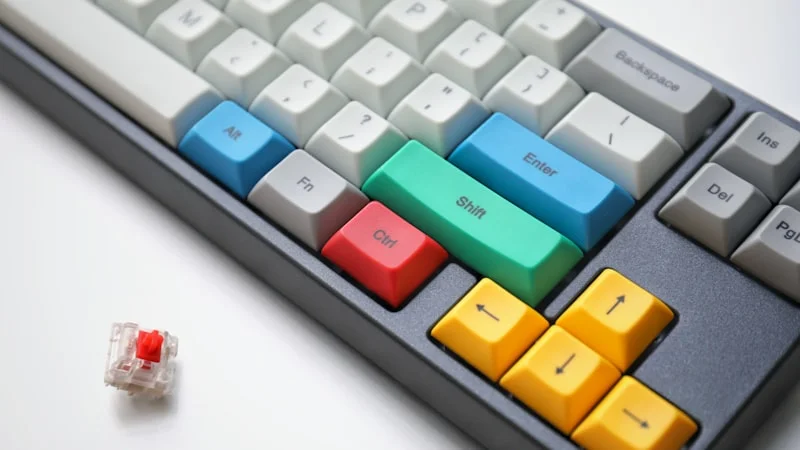
Best 65% Mechanical Keyboards 2026: Top 7 Picks
The 7 best 65% mechanical keyboards of 2026, hands-on tested. From budget picks under $50 to premium wireless — find your perfect compact keyboard.
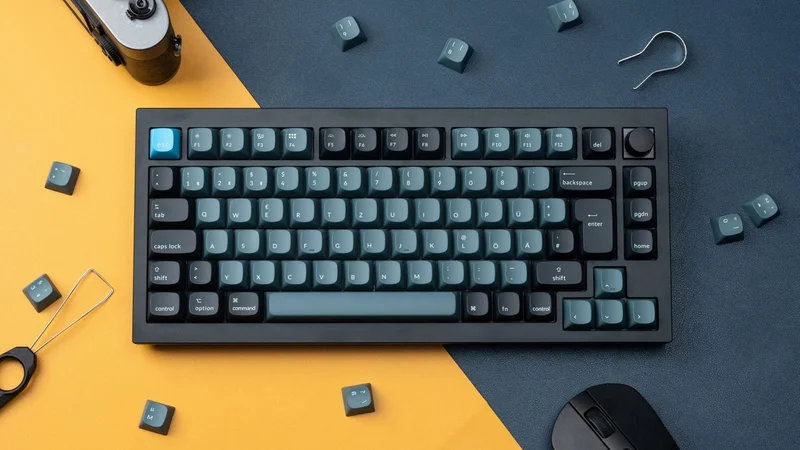
Best 75% Mechanical Keyboards 2026: Top 7 Picks
The 7 best 75% mechanical keyboards of 2026, hands-on tested. From budget picks under $60 to premium wireless — find your perfect compact keyboard.