Cherry MX Red vs Blue: Gaming vs Typing Compared
By Jota Martínez •
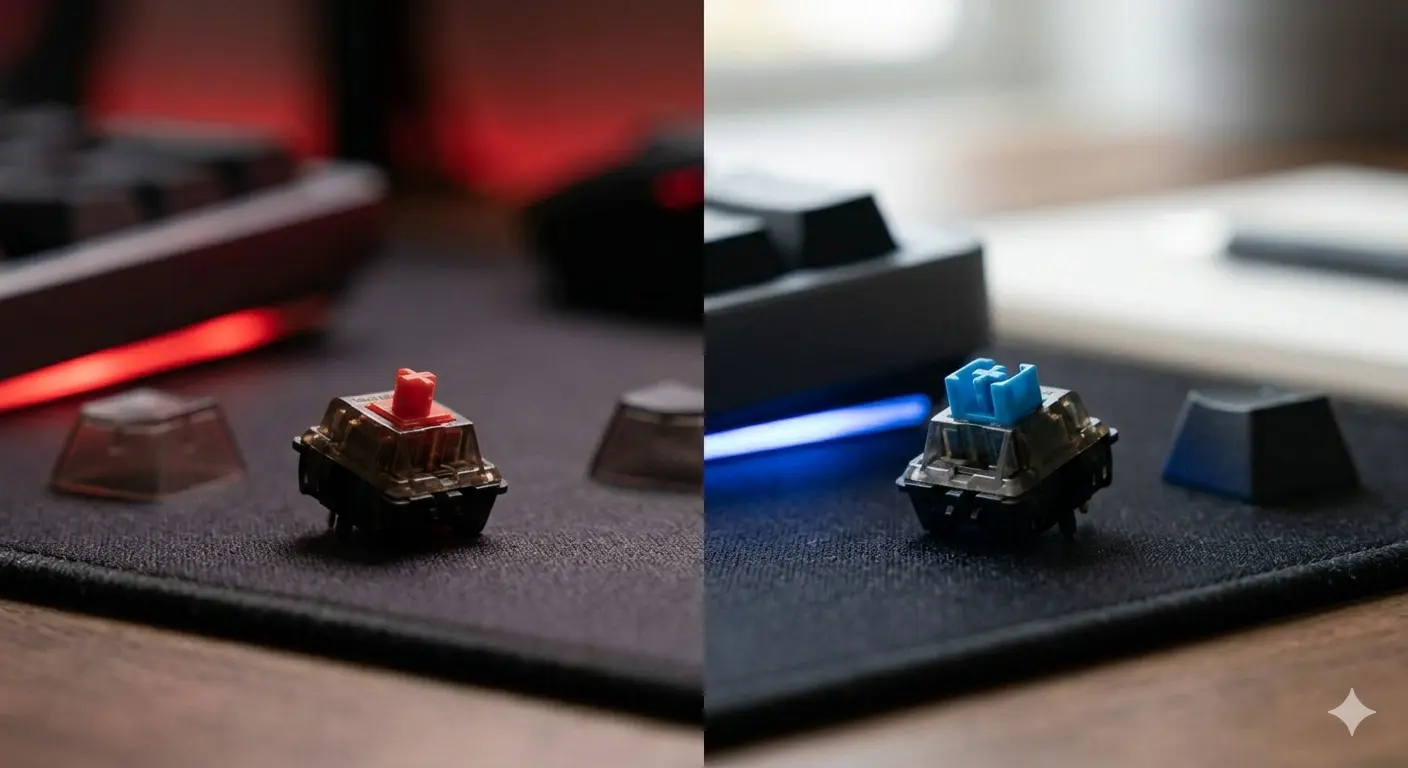
Cherry MX Red and Cherry MX Blue are the two most popular mechanical keyboard switches in the world — and they couldn't be more different. Red is the smooth, silent gaming choice. Blue is the loud, clicky typing switch. The decision between them isn't difficult once you understand what each actually does.
This comparison covers the real differences in feel, sound, and performance — including the situations where neither is actually the best choice for you.
Cherry MX Red vs Blue: Specs
| Specification | Cherry MX Red | Cherry MX Blue |
|---|---|---|
| Switch type | Linear | Clicky |
| Actuation point | 2.0 mm | 2.2 mm |
| Actuation force | 45 g | 60 g (after click mechanism) |
| Total travel | 4.0 mm | 4.0 mm |
| Sound level | Low (quiet bottom-out) | High (loud click + bottom-out) |
| Rated lifespan | 100 million actuations | 100 million actuations |
| Best for | Gaming, shared offices, quiet environments | Dedicated typing, private spaces, tactile/audio feedback preference |
| Price (per switch) | ~€0.45–0.60 | ~€0.45–0.60 |
Cherry MX Red: The Gamer's Default
Cherry MX Red is a linear switch with a smooth keystroke from top to bottom — no tactile bump, no click sound. The 45g actuation force is light enough for rapid repeated keypresses without fatiguing your fingers, which makes it the default choice for competitive gaming. Most pre-built gaming keyboards ship with Cherry MX Red or a clone.
For typing, Red is perfectly functional but polarizing. Without tactile feedback, some typists bottom out every key more often, leading to more finger fatigue during long sessions. Others prefer the smoothness. Cherry MX Red Silent adds small dampening pads to the same linear mechanism, reducing keystroke noise by about 30%.
Cherry MX Blue: The Typist's Classic
Cherry MX Blue is a clicky switch with a noticeable tactile bump AND an audible click at the actuation point. The click is produced by a small blue plastic "click bar" inside the switch that snaps as the key actuates — creating both a tactile sensation and a distinct, sharp sound. The actuation force is 60g peak (after click), slightly heavier than Red.
The typing experience is uniquely satisfying in a quiet environment. The click tells your fingers exactly when each key registered, which many typists find improves rhythm and reduces errors. The problem is the noise: MX Blue is objectively loud — audible in a room, disruptive on video calls, and banned in most office environments.
Red vs Blue: Which Should You Get?
The honest answer depends almost entirely on your environment:
Better Alternatives to Consider
Before choosing between Red and Blue, these alternatives are worth knowing:
For a full overview of switch types, see our guide to linear vs tactile vs clicky switches. For a Gateron vs Cherry comparison, read Gateron vs Cherry MX. For the full picture, see our complete keyboard switches guide.
Frequently Asked Questions
Want to see all switch options?
Our complete switch guide covers every major switch type, brand, and spec — helping you find the right one for your typing style.
Read the complete keyboard switches guideRelated Articles
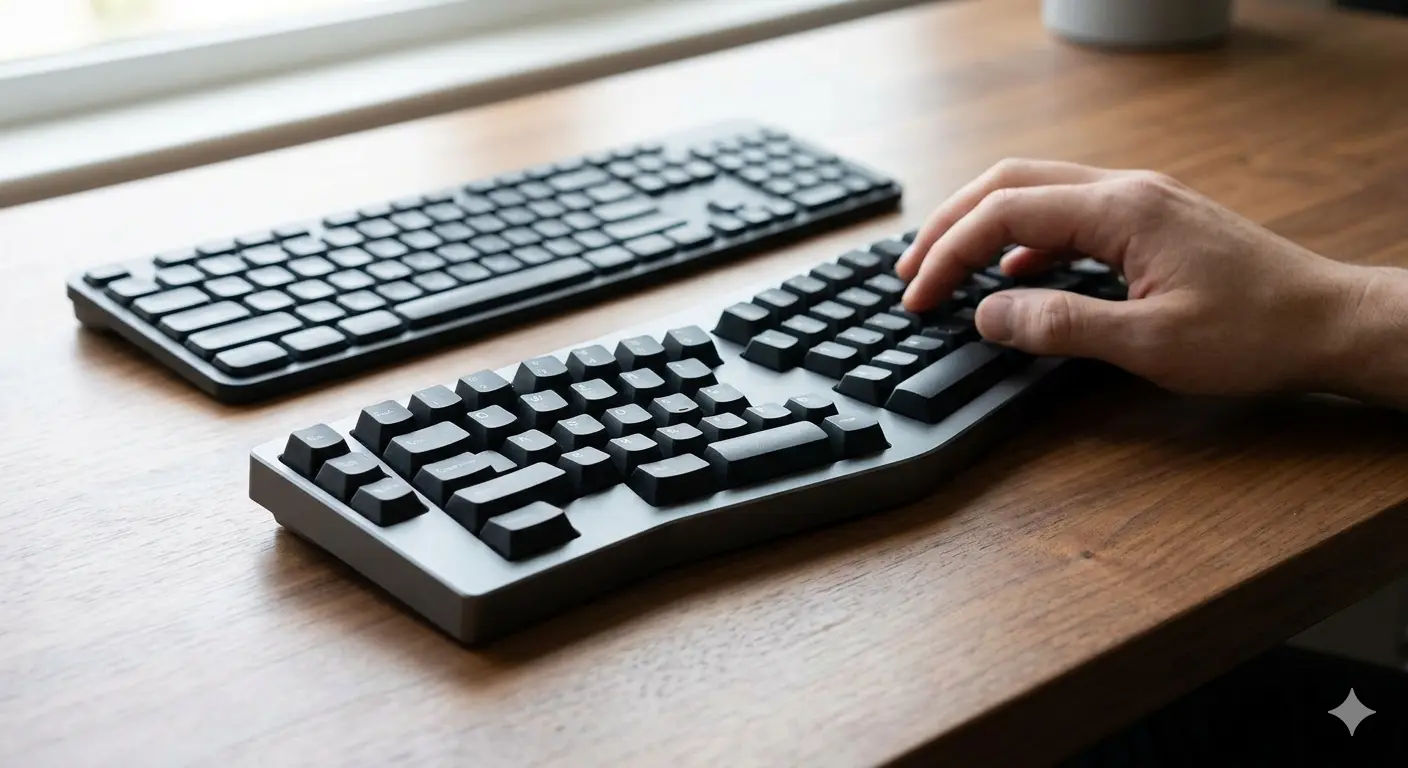
Split vs Regular Keyboard: When Does It Make Sense to Switch?
Split keyboards offer real ergonomic benefits — but for whom? We cover the science, the learning curve, and the models worth trying in 2026.
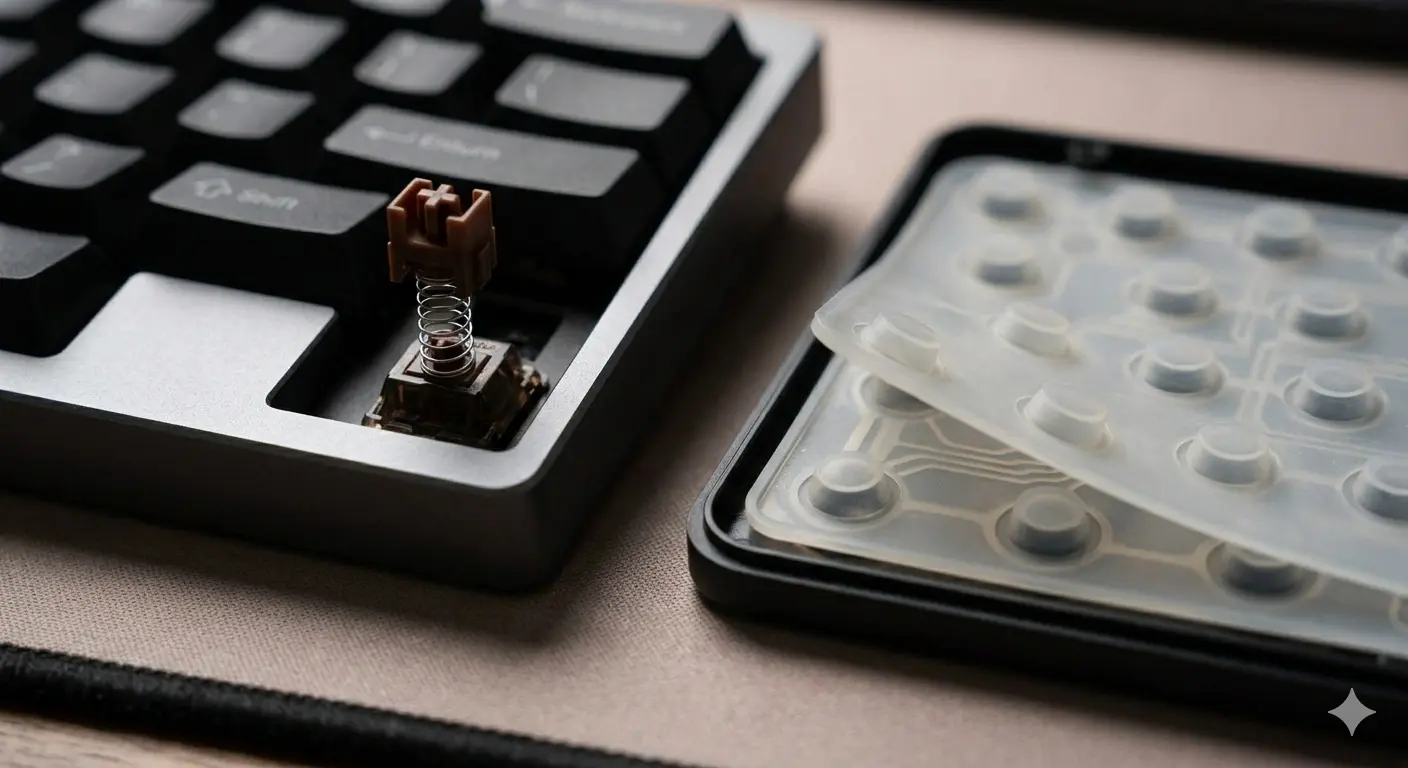
Mechanical Keyboard vs Membrane: An Honest Comparison
Mechanical vs membrane keyboard: lifespan, typing feel, noise, price and customization compared side by side. Which one is actually right for you?
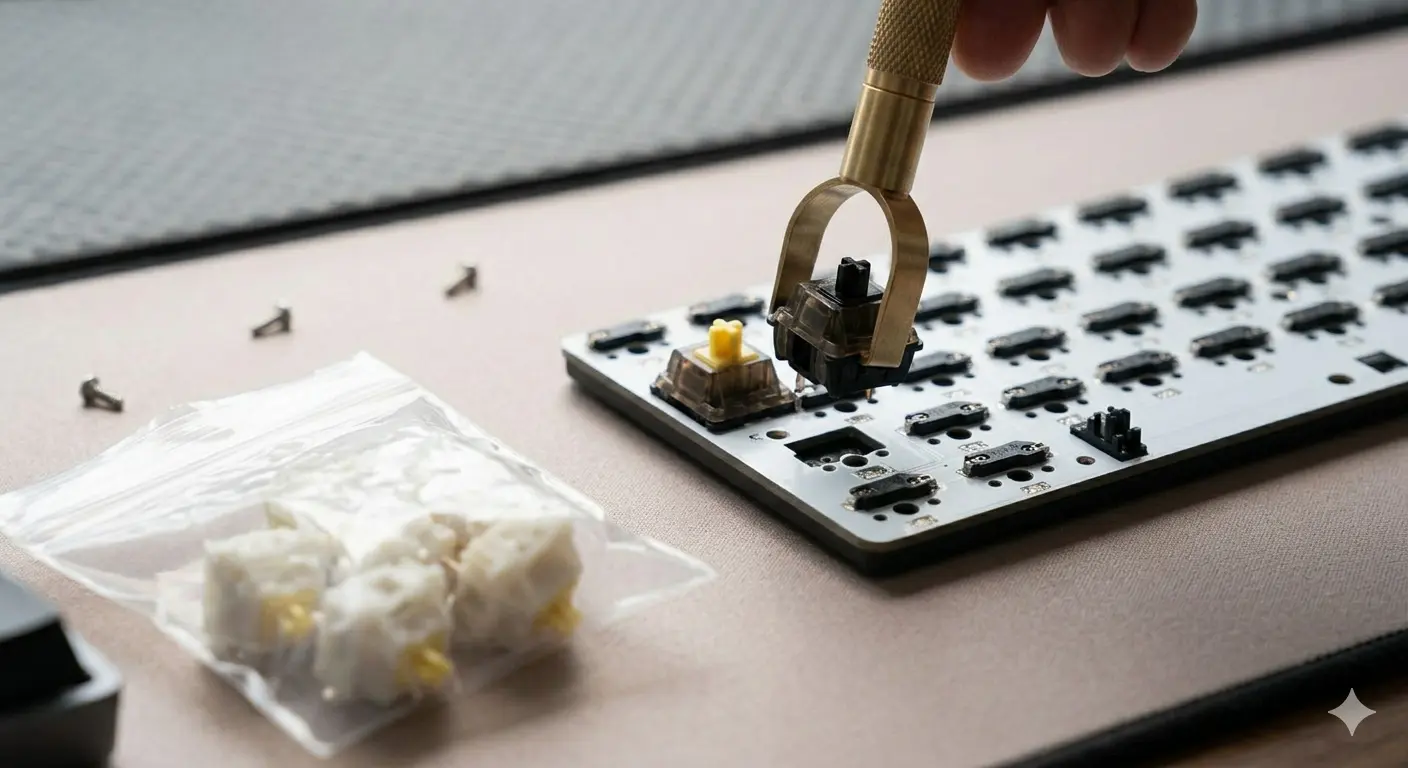
Gateron vs Cherry MX: Are Budget Switches Actually Better?
Gateron vs Cherry MX — smoothness, sound, price, and longevity compared. The honest answer to whether budget switches from Gateron beat the Cherry MX standard.